

Assessment tool
 Course owners and supervisors can use the assessment tool to assess user accomplishments, award points or address personal comments to learners. It allows them to view the assessment of all assessable course elements and make changes to existing assessments.
The course elements which can be assessed, can be found in Assessable course elements.
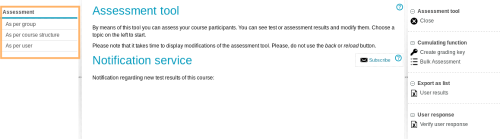
Open assessment tool
To open the assessment tool, proceed as follows:
| 1 | Start one of your courses. |
|
| 2 | Open the Assessment tool using the icon |

 in the top menu area. Please note that this icon will only be visible to you if you have the necessary rights
Possible assessment views
The assessment tool provides various data compilations in different assessment views.
Start the assessment with the appropriate view for your scenario:
Assessment view | Description |
|---|---|
As per group | Here you will find an overview of all the course groups you are supervising. After choosing a group, you can select the course element you want to assess and proceed with the assessment. |
As per course structure | From the overview of all assessable course elements, first select the relevant course element, then the group and finally, the user you want to assess. For ONYX resources, you have additional options at this point. You can, for example, display statistical evaluations or perform an anonymous assessment without user names. |
As per user | First select the desired user from the list of all course participants and then, the course element to be assessed from the list of all course elements. |
Manual user assessment
For the manual user assessment, an assessment form is displayed. This form can be configured, depending on the course element. Available configuration options are explained on the respective course element's help page.
To perform a (single) manual user assessment, proceed as follows:
1 | Open the detailed view of the user's assessment. |
|
2 | Depending on the course element, you will then see a preconfigured assessment form. To find out more about the configuration options for individual course elements, refer to the respective elements' help pages. | |
3 | Enter the missing assessment data (e.g. the score, a mark or comment). | |
4 | Confirm your entries with Save . |

Additional functions in the assessment tool
The assessment tool provides you with the following additional collection functions:
Function | Description |
|---|---|
Create grading key | Using a wizard, you can assign marks for existing user results from selected learning groups. In the first step of the wizard, create an overview of which scores result in which marks. In a preview, you will now see the expected distribution of marks. As a next step, you can adjust the previously entered scores to control the distribution of marks. The system will then automatically assign the marks using this grading key. In the last step, you can download a complete overview of the assigned marks as a file. An automatic assignment of marks based on a fixed grading key is not possible with this function. |
Download certificates | The wizard helps you download all existing certificates for the course. You can filter your search by groups and course elements. |
Bulk assessment | The mass assessment allows you to assess several course participants at once. This type of assessment is only available for assessable course elements. |
User results | Using a wizard, you can select the course element, group, export format and user attributes to be exported. The created list can then be downloaded and saved as a file. |
Verify learner response | The verification is to confirm that the selected HTML file of the exam overview page has not been subsequently manipulated. Therefore, the technical checksum generated with the standard MD5 is compared with the value contained in the HTML page. |
Export lists - User results
Proceed as follows:
- Open your course.
- Open the assessment tool.
- In the menu Export lists on the right, click on the entry User results .
The opening assistant includes the following steps:
1 | In step 1 of the wizard, select the course element whose results you want to download. |
|
2 | In step 2, select the course group (learning group) you want to export. |
|
3 | In step 3, select the export format. If you choose Custom export format , you can open the file with a spreadsheet programme of your choice. |
|
4 | Then in step 4, select the user attributes to be exported. Information relevant for the assessment of a user includes the matriculation number, first and last name as well as the mark or passed status. Close the wizard with Finish . |
|


