02 Zugang (Kursbaustein Aufgabe)
Neben der Sichtbarkeit in der Kursnavigation kann auch der Zugang zu den Inhalten eingeschränkt werden. Damit ist gemeint, ob Lernende im Inhaltsbereich der Kursansicht den eigentlichen Inhalt des jeweiligen Kursbausteins angezeigt bekommen.
Der Inhalt kann dabei ganz oder auch teilweise zu sehen sein bzw. einzelne Funktionen des Kursbausteins können verfügbar oder auch nicht verfügbar sein, wie folgende Beispiele verdeutlichen.
Beispiele öffnen ...
Der allgemeine Zugang zum gesamten Inhalt eines Kursbausteins kann eingeschränkt werden. Ist der Kursbaustein für Lernende allgemein zugänglich, können sie den Inhaltsbereich für diesen Kursbaustein öffnen. Ist der Kursbaustein für Lernende allgemein nicht zugänglich, wird er zwar in der linken Kursnavigation angezeigt, der Inhaltsbereich des Kursbausteins wird jedoch vollständig ausgeblendet und ein individueller Nutzerhinweis wird angezeigt.
Sie sehen hier ein Beispiel für einen Kursbaustein Struktur, dessen allgemeiner Zugang durch ein Datum beschränkt wurde, welches zum Zeitpunkt der Aufnahme noch nicht erreicht war.

Je nach gewähltem Kursbaustein können zusätzlich auch einzelne Funktionen mit einer spezifischen Zugangsbeschränkung versehen werden. In diesem Fall zeigen einzelne Nutzerhinweise, welche Funktionen unter welchen Bedingungen verfügbar sind.
Folgendes Beispiel zeigt einen Kursbaustein Test, der nur in einer festgelegten Zeitspanne für ausgewählte Nutzergruppen und nur bei Vorliegen von Bewertungsdaten eines anderen Kursbausteins verfügbar ist.

Allgemeine Zugangsbeschränkungen
Für alle Kursbausteine stehen allgemeine Konfigurationsoptionen bereit, mit denen der Zugang zum gesamten Inhaltsbereich beschränkt werden kann.
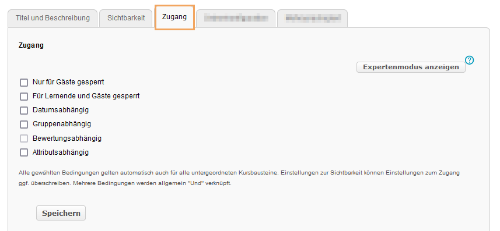
Für diese allgemeine Beschränkung stehen folgende Optionen zur Verfügung:
Allgemeine Konfigurationsoptionen öffnen ...
| Allgemeine Konfigurationsoptionen | Beschreibung | Ansicht der Optionim Kurseditor |
|---|---|---|
Nur für Gäste gesperrt | Ist diese Checkbox markiert, haben ausschließlich angemeldete Lernende, Betreuer und Administratoren des Kurses Zugang zur gewählten Funktion. |
|
Für Lernende und Gäste gesperrt | Wenn Sie die Checkbox markieren, ist der Bereich oder Funktionsabschnitt ausschließlich für Betreuer und Administratoren des Kurses zugänglich. Angemeldete Lernende und auch nicht registrierte Gäste haben keinen Zugang. |
|
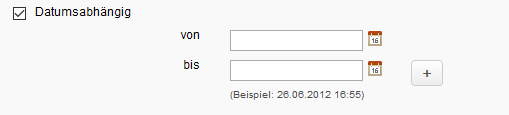
Datumsabhängig | Markieren Sie die Checkbox, um den Zeitraum des Zugangs einzugeben. Sie können Einzeldaten oder einen Zeitraum angeben, indem Sie Start und Ende einzeln bzw. beide Felder ausfüllen. Weitere Termine können Sie mithilfe der Button + und - anlegen. |
|
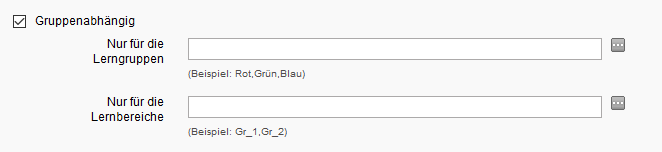
Gruppenabhängig | Markieren Sie die Checkbox, um den Kursbaustein nur für Lerngruppen oder Lernbereiche zugänglich zu machen. Anschließend können Sie bestehende Gruppen oder Lernbereiche wählen oder neue anlegen. |
|
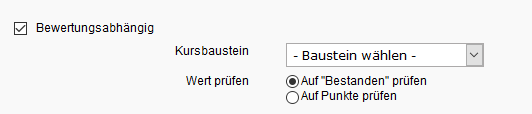
Bewertungsabhängig | Hier stehen Ihnen alle bewertbaren Kursbausteine zur Verfügung. Dazu zählen beispielsweise die Bausteine Test, Bewertung, Aufgabe oder Struktur. Mit der Option Auf "Bestanden" prüfen, können Sie im Eingabefeld Kursbaustein wählen, welcher Kursbaustein bestanden sein muss, um diesen Kursbaustein zugänglich zu machen. Wenn Sie die Option Auf Punkte prüfen wählen, können Sie im Eingabefeld Punkteschwelle eine Punkteanzahl für den gewählten Kursbaustein angeben, ab welcher dieser Kursbaustein zugänglich sein soll. |
|
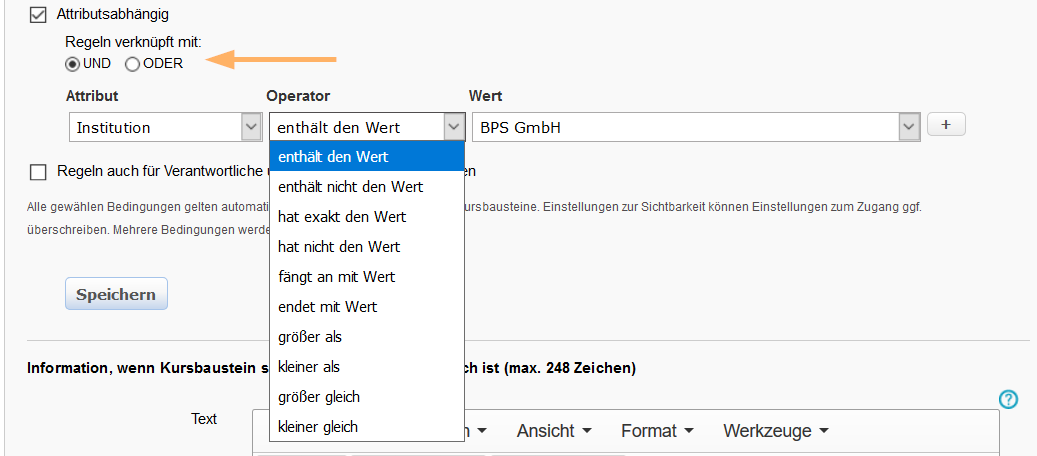
Attributsabhängig | Diese Option wird systemabhängig angezeigt. Sie haben damit die Möglichkeit, die Sichtbarkeit bzw. den Zugang nach Benutzerattributen einzustellen. Nur Nutzer, welche die getroffenen Einstellungen erfüllen, sehen den Kursbaustein bzw. haben Zugang zu den Inhalten. Wenn Sie mehrere Attribute verwenden möchten, so verknüpfen Sie diese mit einem der Operatoren (UND/ODER) über der Attributsliste. Folgende Vergleichsoperatoren sind je nach gewähltem Attribut verwendbar:
Eine Liste verfügbarer Attribute ausgewählter Institutionen enthält die Seite Übersicht der OPAL-Shibboleth-Attribute . OPAL Schule Autoren können das Attribut Stammschule verwenden, um Kurse auf die eigene Schule zu beschränken. Ein Beispiel dazu finden Sie auf der Seite Kurs nur für Nutzer (m)einer Schule freigeben erläutert. |
|
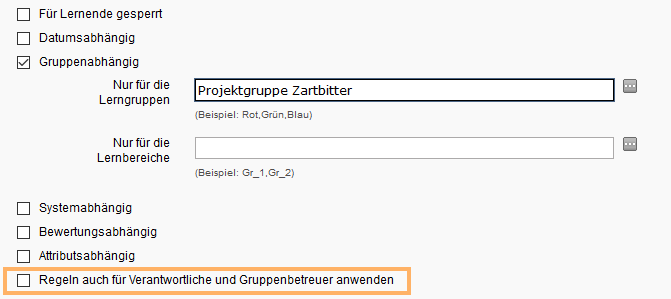
Regeln auch bei Besitzern und Betreuern anwenden | Diese Option öffnet sich erst, wenn eine der anderen Optionen gewählt wurde. Wenn Sie die Checkbox ankreuzen, werden auf Betreuer und Kursadministratoren die gleichen Zugangsregeln wie für Nutzer angewendet. |
|
Passwort | Diese Option ist nur für den Gesamtkurs oder einen Strukturbaustein im Kurs möglich. Geben Sie im Textfeld das gewünschte Passwort ein, nach dessen Eingabe ein Nutzer Zugriff auf die Inhalte erlangen soll. |
|
Expertenmodus anzeigen | Über die Schaltfläche Expertenmodus anzeigen gelangen Sie zu einem Eingabefeld, wo Sie eine komplexere Konfiguration Ihren Bedürfnissen entsprechend vornehmen können. Ausführliche Informationen zum Expertenmodus enthält die Seite Expertenmodus zur Freigabe innerhalb von Kursen. |
|
 "Öffentlich - Für jeden sichtbar" bzw. BARG ) einzelne Kursbausteine oder Funktionsabschnitte für Gäste sperren und nur für angemeldete Nutzer zugänglich machen wollen.
 "Öffentlich - für registrierte Nutzer", haben nicht angemeldete Nutzer (= Gäste) grundsätzlich keinen Zugang zum Kurs.


Weitere Zugangsbeschränkungen
Für einen Kursbaustein Aufgabe können folgende weitere Einschränkungen erstellt werden. Die Einschränkungsoptionen können nur eingestellt werden, wenn der betreffende Teilbaustein aktiviert ist:
Zuweisung | Konfigurieren Sie hier den Zugang zum Abschnitt "Aufgabe auswählen" bzw. "Ihre Aufgabe. Welcher der beiden Abschnitte angezeigt wird hängt von der gewählten Art der Zuweisung ab und ist im Teilbaustein Zuweisung einstellbar. Hat ein Lernender keinen Zugang zum betreffenden Bereich und kann er je nach Konfiguration der Aufgabenverteilung beispielsweise keine Aufgabe auswählen oder die ihm zugewiesene Aufgabe nicht herunterladen. Als Kursverantwortlicher sehen Sie statt des Abschnitts "Aufgabe auswählen" / "Ihre Aufgabe" den Abschnitt "Aufgabenverwaltung" in der Kursansicht |
|---|---|
Aufgabenordner editieren | In der Grundeinstellung ist die Checkbox Für Lernende gesperrt aktiviert. Lernende haben damit keinen Zugang zum Abschnitt "Aufgabenverwaltung". Angezeigt wird dieser Abschnitt nur Kursverantwortlichen oder Nutzer mit erweiterten Rechten am Kurs. Nur diese Personen können Dateien im Aufgabenordner hinterlegen, die später anderen Nutzern zugeordnet werden. Deaktivieren Sie die Checkbox Für Lernende gesperrt, wenn Sie möchten, dass alle Nutzer Zugang zum Aufgabenordner erhalten und dort Dateien erstellen oder hochladen können. Aktivieren Sie eine der anderen Checkboxen, wenn Sie der Zugang zum Aufgabenordner von anderen Bedingungen abhängig sein soll. |
Abgabeordner | Schränken Sie den Zugang zum Abschnitt "Lösung abgeben" ein. Hat ein Nutzer keinen Zugang zu diesem Bereich und kann er je nach Konfiguration keine Lösungsdateien erstellen oder hochladen. |
Abgabeordner - Eigene Lösungen löschen | Schränken Sie die Möglichkeit ein, das Lernende bereits hochgeladene eigene Lösungsdateien selbst wieder löschen können. |
Rückgabeordner | Schränken Sie den Zugang zum Abschnitt "Zurückgegebene Dokumente" ein. Hat ein Nutzer keinen Zugang zu diesem Bereich, kann er die für ihn hinterlegten Rückgabedateien nicht sehen. |
Bewertung | Schränken Sie den Zugang zum Abschnitt "Bewertung" ein. Hat ein Nutzer keinen Zugang zu diesem Bereich, werden ihm bereits vergebene Bewertungen zum Kursbaustein nicht angezeigt. |
Musterlösung | Schränken Sie den Zugang zum Abschnitt "Musterlösung" ein. Hat ein Nutzer keinen Zugang zu diesem Bereich, kann er die für alle zur Verfügung gestellten Musterlösungsdateien nicht sehen. |
Beispiele für die Beschränkung des Zugangs
Folgende Beispiele zeigen die Auswirkung verschiedener Zugangsbeschränkungen für einen Kursbaustein Aufgabe in der Ansicht eines Lernenden.
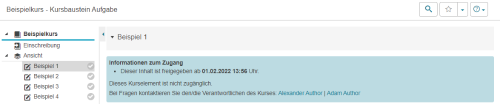
Beispiel 1
Ein Kursbaustein Aufgabe, dessen Sichtbarkeit in der Kursnavigation nicht beschränkt ist, dessen allgemeiner Zugang zum Inhaltsbereich aber einer Datumsbeschränkung unterliegt.
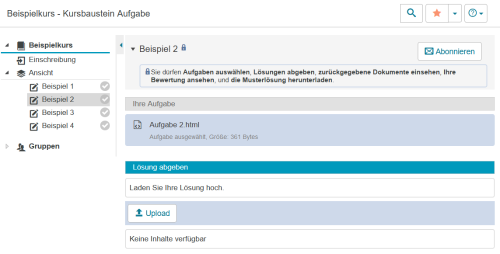
Beispiel 2
Der gleiche Baustein ohne die Datumsbeschränkung zum allgemeinen Zugang. Der Nutzer sieht den Inhaltsbereich und hat bereits eine Aufgabe ausgewählt.
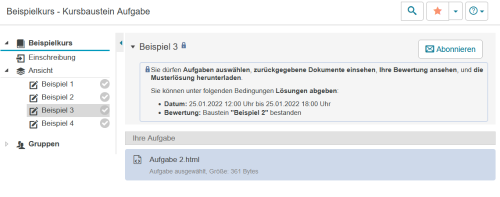
Beispiel 3
Für diesen Kursbaustein Aufgabe wurde der Zugang zum Abgabeordner in Abhängigkeit von einer Bewertung für einen anderen Kursbaustein gesetzt und mit einer Datumsbeschränkung versehen. Die Lernenden sehen nach erfolgter Aufgabenauswahl/Aufgabenzuweisung den Abschnitt "Lösung abgeben" erst, wenn die Bewertung erfolgt ist und der eingestellte Zeitraum erreicht ist. Ein entsprechender Hinweistext informiert Sie unter welchen Bedingungen der Abschnitt für sie zugänglich wird.
Beispiel 4
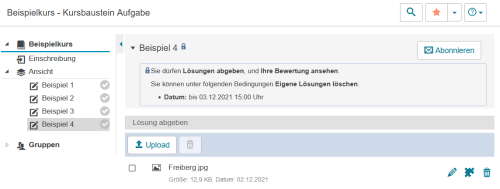
Ein Kursbaustein Aufgabe, der nur die Teilbausteine Abgabeordner und Bewertung enthält. In den Zugangsbeschränkungen wurde festgelegt, dass Lernende hochgeladene eigene Lösungen bis zu einem festgelegten Zeitpunkt auch wieder löschen können.