(Self-)registration
To register yourself in the learning platform , proceed as follows:
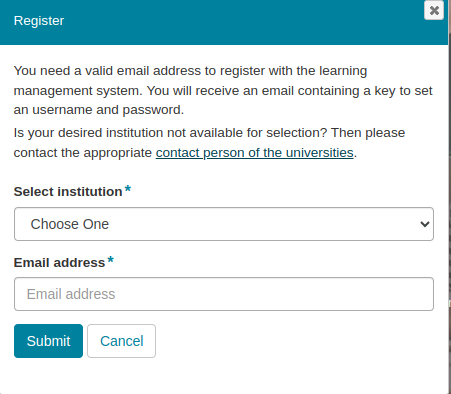
Open the home page of the learning platform. Click on Register.

The Register dialogue appears, asking you to enter some information.
According to the platform configuration, you need to select the institution to which you belong. Open the list and select your required institution. After that, you can display additional institution-specific information and links. Please follow these instructions.
If you do not find an institution selection in the dialogue, you only need to enter your e-mail address for this platform.
Confirm your entries by clicking on Submit.
The dialogue closes and you will receive an email to your specified email address. Open the confirmation link in the email to proceed to the last step of the registration process.
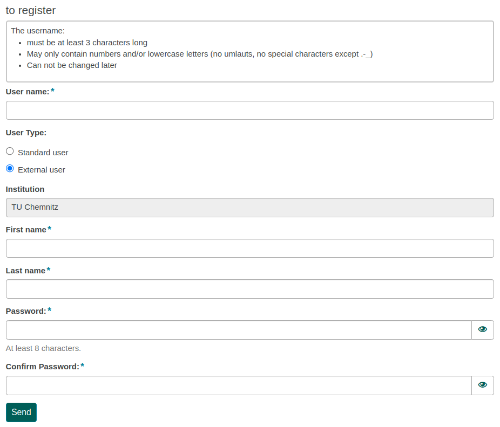
The link opens a form in which you have to enter all further data required for this platform. Enter a username, password, as well as other system-dependent data.
Confirm your entries by clicking on Submit.
After all information has been successfully submitted, the terms of use for the learning platform will be displayed. Confirm them with Agree at the bottom of the page.