

External user role
The "external user” role is assigned to a person who logs on to the learning platform via self-registration.
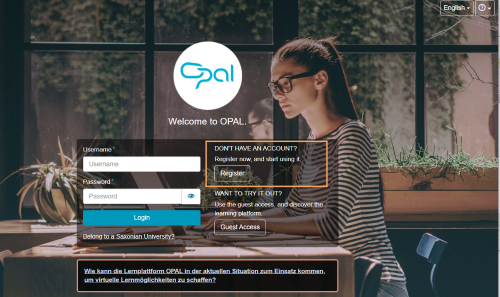
An external user is granted extended guest rights in the learning platform. Both guest and external users cannot use all functions in all course elements compared to a registered standard user. The tables on this page provide an overview of the range of functions in the individual course elements.
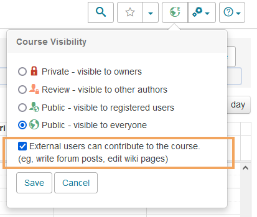
With an additional publication option, it is possible to put external users in a course on a level with registered standard users. External users will then also have access to all course element functions. The added value of this setting can be seen in the following tables. For further guidance on publishing courses, refer to the General access to courses and resources help page.
Comparison of course element functions per publication status
The following tables show the range of functions in a course and its course elements. It is assumed that these are not subject to any additional or specific visibility or access restrictions. To be able to use the whole range of functions described in the tables, the external user must be logged into the platform and thus have an active user session.
Table legend
| The course element content or functional area is visible and usable according to the instructions. |
| The course element or functional area is partially available according to the instructions. |
| The course element content or functional area is not visible, the function is not available. |


Publicly available course content (BARG)
| Publishing status | Publishing status | |
|---|---|---|---|
Course element or functional area | Guest user | External user | External user |
Test, Self-test |
|
| |
Scorm, CP, Media library, Flashcard set, Virtual classroom |
| ||
File dialogue, Forum |
| ||
Message, Bibliography, LTI tool, Link list, Internal page |
| ||
Blog |
| ||
Wiki |
They can only participate in discussions (write, edit, reply to and quote posts, as well as mark them as favourite and as best post) and view the version history of a wiki page. |
|
|
Folder (all rights free) |
|
| |
Forum |
|
|
|
Profile, Enrolment, Task, Survey, Topic assignment, Assignment of dates, Portfolio task, E-mail |
|
|
|
Course calendar |
|
| |
Subscription to course elements, Course progress |
|
|
|
Performance results |
|
|
|
 "Public – visible to everyone" (BARG)
 "Public – visible to everyone and external users" (BARG|E)
 The content is not visible to the user. The following message is displayed: "The course element "[Title]" is not open for guests. Please log in to gain access."
Course content available to registered users (BAR)
| Publishing status | Publishing status | ||
|---|---|---|---|---|
Course element or functional area | Guest
| External user | Guest | External user |
Test, Self-test |
|
|
| |
Scorm, CP, Media library, Flashcard set, Virtual classroom |
| |||
File dialogue, Forum |
| |||
Message, Bibliography, LTI tool, Link list, Internal page |
| |||
Blog |
| |||
Wiki, Folder (all rights free) |
| |||
Forum |
| |||
Profile, Enrolment, Task, Survey, Topic assignment, Assignment of dates, Portfolio task, E-mail |
| |||
Course calendar |
| |||
Subscription to course elements, Course progress |
| |||
Performance results |
| |||
 "Public – visible to registered users" (BAR)
 "Public – visible to registered and external users" (BAR|E)
Add external users to groups
For data protection reasons, external users cannot be added to groups in the group management. Although you can find external users (belonging to the same institution) via the search, you will receive an error message when trying to add them. Therefore, you should always allow external users to self-enrol in groups (Enrolment course element).