Integrate Videos
Make videos available via embed code
This option is suitable for videos that should not be uploaded to the OPAL learning platform because they are already available elsewhere. A video embedded in this way is displayed in the course view with a preview image. The video can be started directly from there by clicking the Play button. Users do not have to switch to another page or another tab.

To embed a video on an internal page, proceed as follows:
1 | First, you need the embed code of the video. You can usually find this code in the editing area of your video platform. The Find embed code page describes where you can copy this code for individual platforms. Save the code to your clipboard. |
|
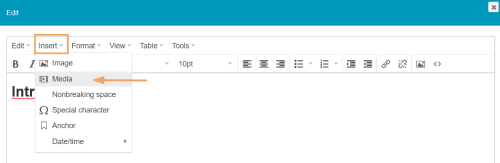
2 | Now open the text editor, e.g. in a single-page course element, to which you want to insert the video. Select Insert from the tool area of the text editor. This opens a list from which you can select the Media option. |
|
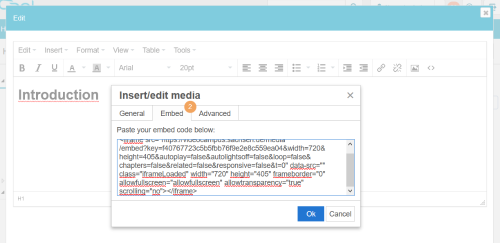
3 | In the dialogue that opens, select the displayed Embed tab. Enter your embed code in the text field and close the dialogue with OK. |
|
4 | A placeholder for the video will then appear in the text field. Save your page with Save and close. |
|
5 | The editor view of the page closes, and you will see the playable video on the displayed page in the course view. |
|



Insert video link
If the video should not be visible in such a prominent way, as it is rather complementary to the text, it might be a good idea to include the video/audio file as a link. Here the user is shown a simple link entry, which can optionally be used to open the video in a new browser tab.
To insert the link to a video, proceed as follows:
1 | Open the text editor and create or edit the text. Select the Insert link icon |
|
2 | A dialogue opens in which you can directly enter the link address. Alternatively, you can also access all linkable files via the | |
3 | The file selection dialogue opens. Use the Add button |
|
4 | As a next optional step, you can specify a link text to be displayed on the page instead of the URL as well as an alternative title and the link's jump target. Confirm your entries in the dialogue by clicking on OK. Save the page with Save and close. |
|
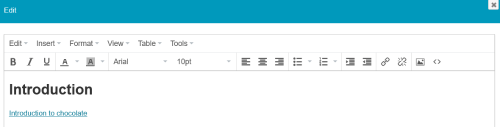
5 | The editor view of the page closes, and you will see the inserted link on the displayed page in the course view. |
|
 from the menu bar of the editor.
 icon at the end of the URL line.
 to select the desired target file or the Upload button
 to upload a new file which can then also be selected.

Insert uploaded video directly
If a video or audio file is already available in the course storage folder, it can also be displayed in the page text in a playable format. This option is useful if the medium has not yet been uploaded to a video platform.
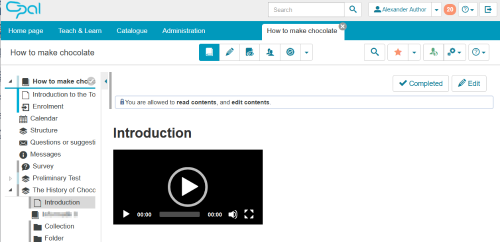
To insert a video in this way, proceed as follows:
1 | Open the text editor and go to the position in the text where the medium should be displayed. |
|
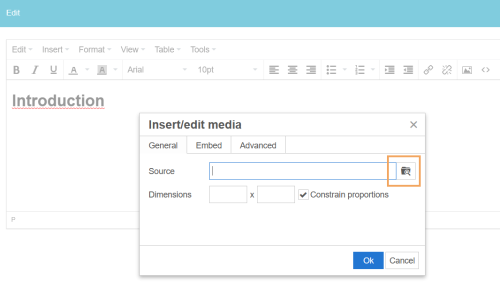
2 | In the menu area, select Insert and then click on Media. | |
3 | A dialogue opens in which you can enter the link source. To display all files that can be linked, click the browse icon |
|
4 | The media management dialogue opens. Use the Add button |
|
5 | If necessary, enter additional optional information. Confirm your entries in the dialogue by clicking on OK. Save the page with Save and close. | |
6 | The video is now displayed on the page and can be directly played or downloaded depending on the device and media format. |
|