

03 Test Configuration
Use various configurations in the Options tab to customise the test according to your needs.

Related Topics
Test Settings
Time limit
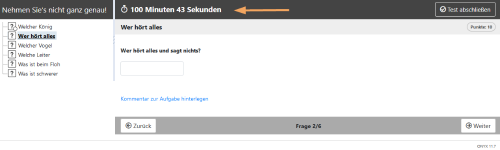
The author can define a processing time for the entire test or individual test sections. The remaining processing time will be displayed to the participant during the test accurately to the second.

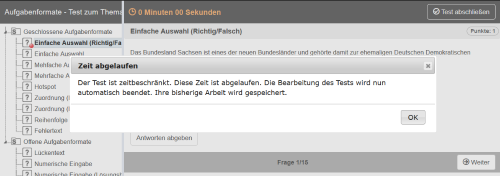
After the time is up, a message will be displayed to the participant indicating that the sections and questions can no longer be edited. Once the processing time for the whole test has expired, the test will automatically be terminated.
Display of the processing time without time limit
Tools
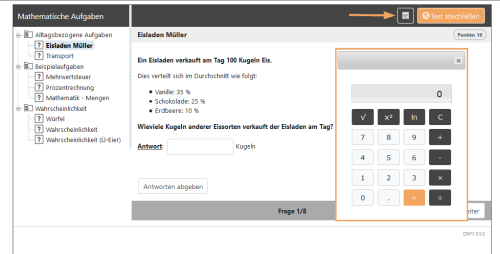
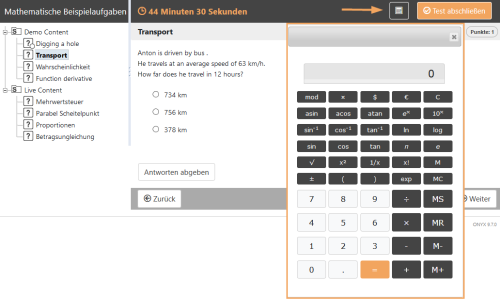
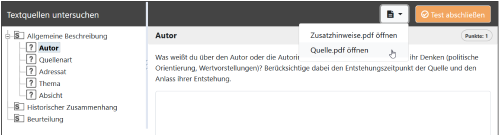
You can provide additional functions to participants for taking the test. For example, you can share a calculator or additional documents that can be opened and used in the test.

Calculator
A simple and a scientific calculator are available. Select the required range of functions under Display.
Simple calculator | Scientific calculator |
|---|---|
|
|
Additional files
Any additional files that are provided can be accessed during test execution.
Provide file(s)
Upload one or more PDF documents that can be accessed throughout the entire test.
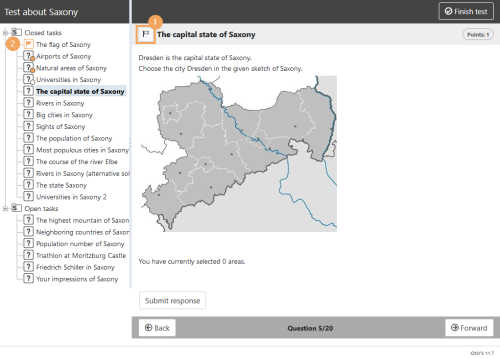
Tagging of tasks
If option is activated, the user can mark tasks during the test that they would like to check again later.
Navigation and Display
Navigation
The author can choose between a linear and a non-linear navigation. A non-linear navigation allows participants to navigate between questions. In this way, solutions entered for previous questions can still be changed later on.

In the case of a linear navigation, participants have to navigate from question to question using the next and back buttons. As concerns the non-linear navigation, it is also possible to navigate using the displayed navigation tree.
Display
The author can decide how the questions will be presented to the participants. Currently, it is only possible to show either one or all questions of one section on one page (section-based).

For display on mobile devices, we recommend showing only one question at once.
Test settings
Comments
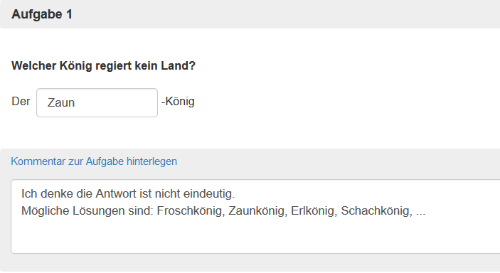
Comments allow the participants to leave a message for the test assessor. Especially in the case of closed task forms with limited response options, the comment function offers a valuable support possibility for participants, e.g. if they do not understand the task, perceive the task as inaccurate, or do not find their solution in the answers provided to them.

In the ONYX Editor, you can decide whether the comment settings are supposed to be applied to the entire test or only to selected sections or individual tasks.
The tutor can view the comments in the participant's results view. Further information are provided in the help section "Results view: View participant".
Use comments in the test
To enable the comment function for a test, proceed as follows:
- Switch to the Options tab in the test settings.
- In the Options section, activate the Allow on question level checkbox under Comments. Now, participants can leave a comment for each question in the test.
New random values
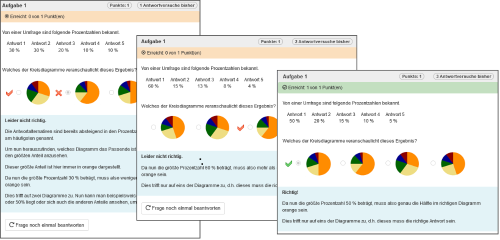
By default, the same variable values and the same order of elements will be used for each attempt to solve a question. If you select the New random values option, random parameters will be recalculated per attempt. This affects both the variables used and the random order.
Recalculate variables | Questions can be changed for each test attempt by using variables. If the random values are recalculated, so are the variable values for each attempt at a question. |
Reshuffle random order | The Shuffle option is available for choice interactions, match interactions, matrix interactions and order interactions. If enabled, the predefined responses of these question types will be arranged differently for each test attempt. If random values are recalculated, the order will also be changed for each attempt at a question. |
These settings can extend practise and self-test scenarios. If the participant does not solve a question correctly, feedback can be used to provide instructions on how to answer the question and find a solution. The participant can then retry the question in a new attempt. The use of random values such as variables and a new random order will allow the participant to work on a similar question but with new answers or values.
Comments allow the participant to leave feedback on a question for the test evaluator. Especially in the case of closed question forms with limited response options, the comment function offers a valuable support possibility for participants, e.g. if they do not understand the question, perceive it as inaccurate, or do not find their solution in the answers provided to them.
In the ONYX Editor, you can decide whether the comment settings are supposed to be applied to the entire test or only to selected sections or individual questions.
The tutor can view the comments in the participant's results view. Further information are provided in the help section Results view: View participant.
Use comments in the test | To enable the comment function for a test, proceed as follows:
|
Advanced settings - External files
External File
You can enhance or customise your questions and tests with additional files.
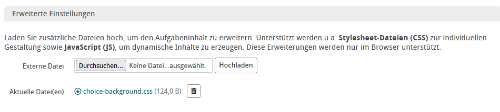
Layout adjustments by using a style sheet file (CSS)
In order to use this function, you need to have a basic knowledge of HTML and CSS. Save your layout file as a CSS file (.css) and upload it to the Options tab of your question or test. Use the preview to verify whether it will be properly displayed. You can remove the layout file at any time or upload a new one.
You may enhance or customise your questions and tests using additional files.

Layout adjustments by using a style sheet file (CSS)
In order to use this function, you need to have a basic knowledge of HTML and CSS. Save your layout file as a CSS file (.css) and upload it to the Options tab of your question or test. Use the preview to verify whether it will be properly displayed. You can remove the layout file at any time or upload a new one.